
Adding a STENG to a cluster
To add a STENG to a cluster, follow these steps:
Select the Cluster clicking on it.
Click the Add STENG button. Note: The Add STENG button is below the list of already created STENGs – if any.
In the dialog window, assign a name and a description to the STENG.
In the Server info section, enter the Hostname or address of the Server and the Command Server Port.
To add configuration parameters for DMZ connection, enable the toggle button in the Connect to DMZ section and fill in the fields:
Socket timeout: (Default value: 30 seconds). DMZ Driver/DMZ Gateway tunnel socket read/write/connect timeout in seconds; -1 implies infinite timeout.
Idle timeout: (Default value: 90 seconds). Keep alive, in seconds for, checking connection between DMZ Driver and DMZ Gateway.
Reconn interval: (Default value: 10 seconds). Number of seconds after which a disconnected DMZ Driver will attempt a new connection to DMZ Gateway.
Reconn attempts: (Default value: -1). Number of connection attempts before a DMZ Gateway is considered definitely unreachable. -1 means infinite attempts.
Reserved port range: (Default value: 50100-51100). TCP-IP port ranges to be used to open tunnels between DMZ Driver and DMZ Gateway. For each incoming/outgoing connection, one port should be reserved (2 ports are needed for FTP protocol).
Local address: (Default value: 0.0.0.0). Local IP address that the DMZ Driver will bind for incoming/outgoing connections.
To associate the STENG with a DMZ Cluster, enable the corresponding toggle button. The DMZ clusters displayed in this section are configured in Setup → DMZ Clusters. If you need to add a new cluster, click Add Cluster in this dialog. The new cluster will also appear in Setup → DMZ Clusters. You can change the order of clusters in the Add STENG window by dragging and dropping them into the desired position. The order of DMZ clusters determines their priority: the first cluster in the list has the highest priority. You can activate multiple DMZ clusters as needed; they will be listed in the order you define. To reorder clusters, simply click the cluster name and drag it to the preferred position.
Click the Save button to add the STENG.
Each STENG has a card with useful information:
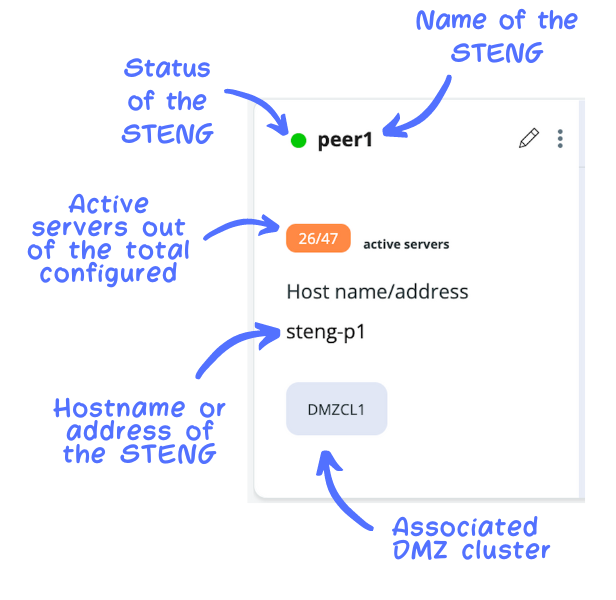
An Edit option  is available in the top-right corner, together with a 3-dot icon allowing you to Start, Stop and Delete the STENG. After selecting the Delete menu entry, a confirmation message will appear so that you can confirm the action.

Note that the Stop action stops the STENG at function level but the JVM remains active.
The Delete STENG option is available only when the STENG does not have any server associated.
Last updated