
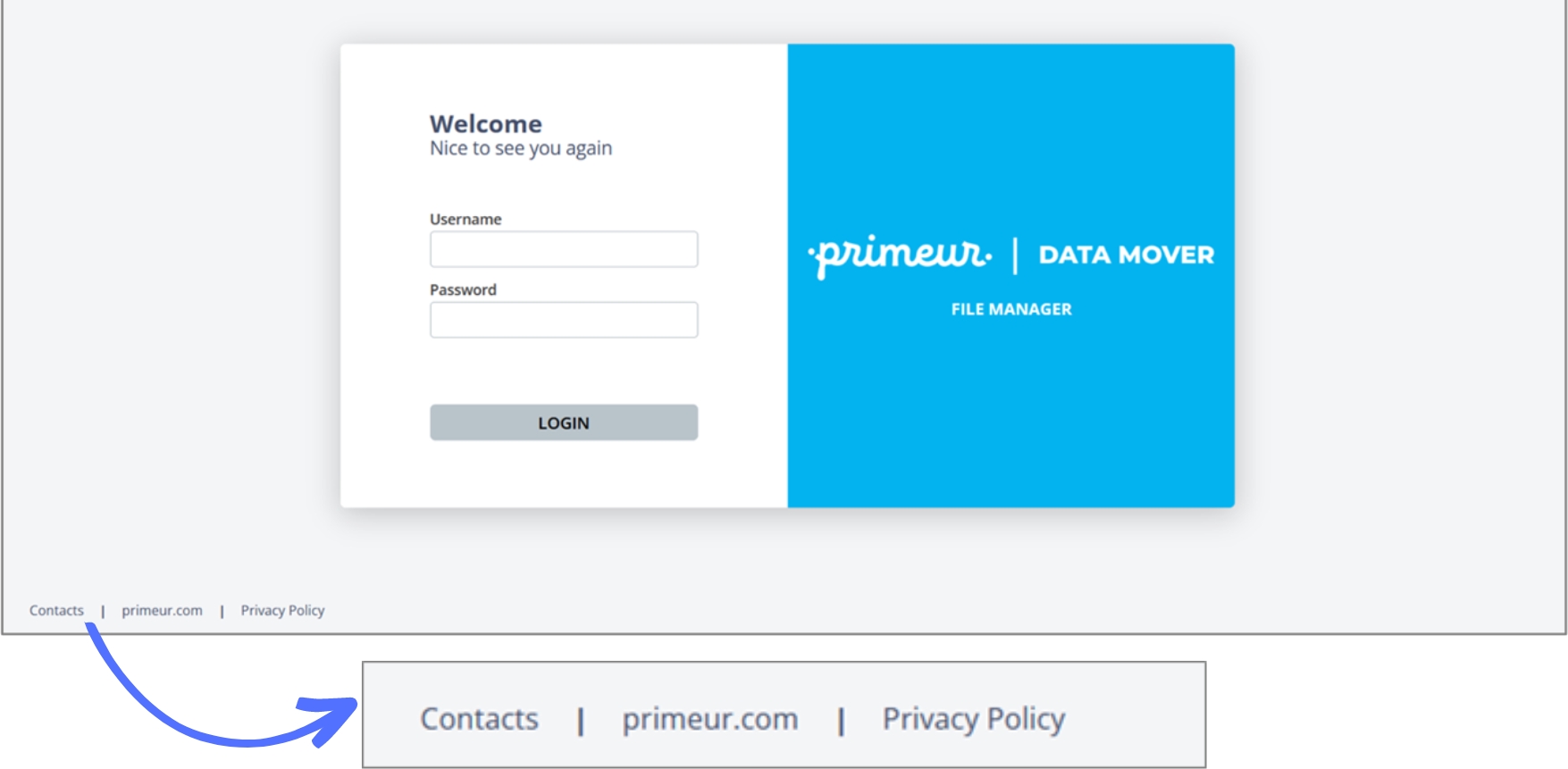
How to customize the footer
Scroll down to the Applications section and click the
 icon to open the Edit Configurations window.

Last updated
Scroll down to the Applications section and click the icon to open the Edit Configurations window.
Last updated
"color": "#00000","links":{
"label": {
"en":"Contacts",
"it":"Contatti"
},
"url": "https://www.primeur.com/help-desk-support/",
"newpage": true
}"links": [
{
"label": {
"en": "Contacts",
"it": "Contatti"
},
"url": "https://www.primeur.com/help-desk-support/",
"newpage": true
},
{
"label": {
"en": "primeur.com",
"it": "primeur.com"
},
"url": "https://www.primeur.com/",
"newpage": true
}
{
"label": {
"en": "Privacy Policy",
"it": "Privacy Policy"
},
"url": "https://www.primeur.com/privacy/",
"newpage": true
}
]