
Notifications 🚀
When modeling a flow, you can configure notifications to alert users when specific events occur.
Navigate to Dataflow Models → New or Edit and go to the Dataflow Properties panel.
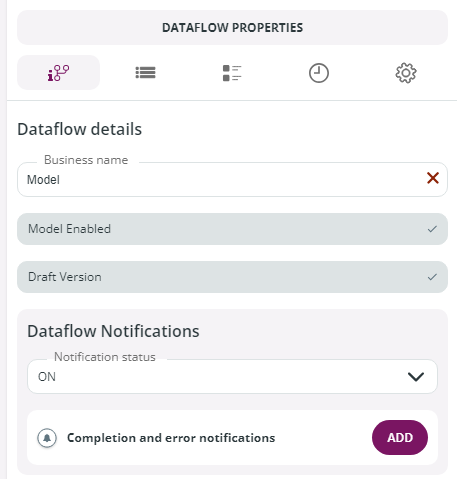
In the Dataflow Notifications section, go to Completion and error notifications and click Add.
To configure the new notification, in the New notification window, provide the following details:
Name: enter an internal name for the event notification.
Events: select one or more events that will trigger the notification. Available options:
Flow Complete
Flow Error
Business Error (requires a specific license)
🚀 Note: For Flow Error with multi-instance cut-offs, notifications are sent only for the dataflows that generate the error. For example, if one out of three dataflows fails, only that failure triggers a notification.
Notification Channels: choose the channel for sending notifications.
Add Email: enter the email address of individual users or a group (mailing list), then click + to add.
Click Confirm to finalize and configure the notification.
See below an example of Notifications set with the System email notification channel. In this example Buzz Aldrin and Neil Armstrong will receive an email informing them that the flow was completed successfully.

🚀 Dataflow notifications management
Dataflow notifications can be switched on or off in 2 distinct locations:
On the Dataflow Properties panel described above, selecting ON or OFF in the Notification status section.
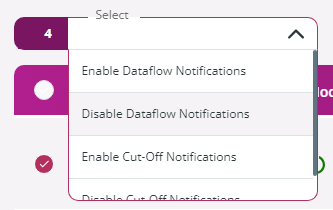
On the Dataflow Models page, by clicking the 3-dot icon on the right of the model and selecting Enable Dataflow Notifications or Disable Dataflow Notifications. If you select multiple models, multiple dataflow notifications can be set in one go by going to the Select drop-down menu and choosing the Enable Dataflow Notifications or the Disable Dataflow Notifications entry.
Last updated