# Spazio
The configuration of the **Spazio plugin** is required to:
* establish the connection between Panorama and Spazio
* display the **Spazio Card** in the Dashboard
* access and explore the **Spazio infrastructure** in the corresponding analytical panel
Follow the steps below to configure the plugin:
1. Go to **Setup** → **Plugins**.
2. Click the **+** button. The **Add New Plugin** window opens.
3. Select the **SPAZIO** card.
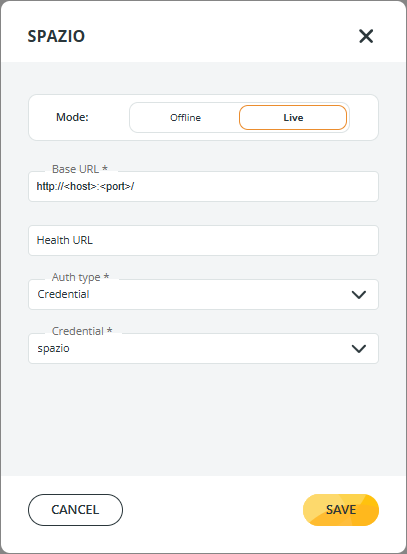
4. Fill in the required fields as described below.
* **Mode**: choose how Panorama retrieves the Spazio infrastructure:
* **Offline**\
Enables Panorama to download the Spazio network infrastructure once.\
This avoids repeated downloads each time the Spazio page is accessed.
* **Live**\
Downloads the Spazio infrastructure **every time** the Spazio page is accessed.\
Panorama then combines this infrastructure with transfer data retrieved from **Data Watcher**.
* **Base URL (\*)**: enter the URL (host and port) of the **Primeur Node Configurator™ Agent,** which \
must be installed and configured in Spazio following the instructions of the Primeur SPAZIO MFT/S
for Distributed Platforms Installation and Configuration Guide, section 11.1 “Configuring the Primeur Node Configurator™ Agent.”
{% hint style="danger" %}
**Note**: To view flows coming from Spazio, the Spazio environment must be configured to send events to **Data Watcher**. See the [DWA PROXY for SPAZIO MFT/S](https://app.gitbook.com/s/vfBx1WHcAqjlV6dluhi8/configuring/configuring-dwa-proxies#dwa-proxy-for-spazio-mft-s) page on the **DWAgent 2.0.0** documentation.
{% endhint %}
* **Health URL** (optional): enter an endpoint for health checks when the Base URL cannot be used to verify the status of the Primeur Node Configurator™ Agent. E.g., `/status`.
* **Auth Type (\*)** **and Credential (\*)**: select the authentication method (**Auth type**), and the credential set (**Credential**) to be used when connecting to the Spazio instance defined in **Base URL**.
Once all required fields are completed:
* Click **SAVE** to store the configuration.
* Panorama will start interacting with the Spazio instance according to the selected mode.