# Data synchronization
**Data synchronization in Primeur Panorama** ensures that all information is consistent and up to date. It updates and aligns data to reflect the latest changes, additions, or deletions so that the most recent information is always available.
{% hint style="warning" %}
It is recommended to schedule Panorama data synchronization with a frequency that takes into account the execution of the **Data Watcher cleaner**. If the cleaner runs *before* Panorama performs synchronization, the related Data Watcher data will be removed and therefore unavailable to Panorama, resulting in an empty or incomplete synchronization.
To prevent this, synchronization can be configured to run automatically at a convenient, non‑intrusive time (for example, during the night). If the data volume is high, it is advisable to schedule synchronization at least once per day.
Refer to the [Scheduling tab](https://docs.primeur.com/panorama-1.2.6/setup-and-configuration/data-synchronization/scheduling-tab) page for details on how to schedule synchronization.
{% endhint %}
Panorama performs synchronization **incrementally**, meaning that only the changes made since the last synchronization are processed. This includes new data, updates, and deletions.
During configuration, the administrator defines the polling interval (in minutes) for synchronization status in the **Sync status polling** field.
{% hint style="info" %}
The default value is **5 minutes**. To change this value, go to **Setup → System** and click the pencil icon to open the **System** window.
{% endhint %}
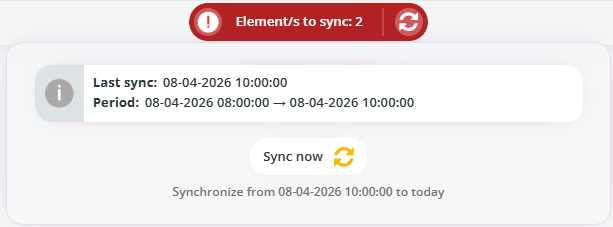
When the time defined in the **Sync status polling** field elapses, Panorama checks for new data. If new data is detected, a **red button** appears at the top of the screen.
{% hint style="info" %}
**Note:** If new Data Watcher data refers to days that have already been synchronized, Panorama will *not* update it automatically. To display cards containing this new data, synchronization must be forced by going to the [**Calendar** tab](https://docs.primeur.com/panorama-1.2.6/setup-and-configuration/data-synchronization/calendar-tab) and clicking the **Resynchronize** button.
{% endhint %}
Click the **exclamation mark icon** to view the **number of elements pending synchronization**.
Selecting the **Element/s to sync** label displays additional details, including the last synchronization time and the covered period.
Click the **refresh icon** next to the exclamation mark to update the number of elements to sync.
To start the synchronization process, click **Sync now**. Once the synchronization is completed and the system is fully aligned, the button turns **green**, indicating that no further action is required.
Refer to the following pages for details about the three main tabs: [Calendar](https://docs.primeur.com/panorama-1.2.6/setup-and-configuration/data-synchronization/calendar-tab), [Scheduling](https://docs.primeur.com/panorama-1.2.6/setup-and-configuration/data-synchronization/scheduling-tab), and [History](https://docs.primeur.com/panorama-1.2.6/setup-and-configuration/data-synchronization/history-tab). Note that only users with the **Administrator** role can access these tabs and manually start or force synchronization.

 pencil icon to open the **System** window.
{% endhint %}
When the time defined in the **Sync status polling** field elapses, Panorama checks for new data. If new data is detected, a **red button** appears at the top of the screen.
pencil icon to open the **System** window.
{% endhint %}
When the time defined in the **Sync status polling** field elapses, Panorama checks for new data. If new data is detected, a **red button** appears at the top of the screen.