# Data Watcher roles
The following roles are created when installing Data Watcher and cannot be modified or deleted:
* **Administrator**: it has all the permissions to set up and manage features. Administrators can create and manage roles to assign users specific permissions that determine the operations they can execute within Data Watcher.
* **Operator**: it has permission to execute operational activities such as viewing all dataflow models, flow instances, and attributes, tagging a flow instance, and managing saved queries.
* **Modeler**: it has permission to execute modeling activities such as managing dataflow models and attributes, viewing all flow instances, managing saved queries, cut-offs, and email templates, and viewing notification channels,
To improve user management in the organization, other roles can be added.\
For example, an **Analyst role** can be created with a specific set of permissions just for Analysts. When setting up a new user in this role, the administrator can apply the predefined Analyst permissions all at once. This process reduces the chances of making mistakes that can happen when selecting permissions individually. This method speeds up user setup and ensures that permissions are assigned consistently across all Analyst users.
To **create a new role**, follow these steps:
1. Go to **Setup** → **Roles**.
2. Click the **NEW ROLE** button.
3. In the **New role** window, assign a unique name to the role you are creating.
4. In the panel on the right, enable the permissions you want to assign to the role. By default, all permissions are listed, and you can filter them by typing part of the name in the field with the lens at the top. You can also type the Entity (e.g. CALENDAR) to list all permissions belonging to the Calendar feature at once.\
You can also see only the already assigned permissions by clicking on the icon. The icon becomes a closed eye and to list all permissions again, you must click on it.
5. Click the **Save** button to confirm.
The created role is available when creating or editing users, allowing the administrator to assign role permissions to users without having to select them individually.
To **assign a role to a user**, follow these steps:
1. As Administrator, go to **Setup** and click the **Users** chip.
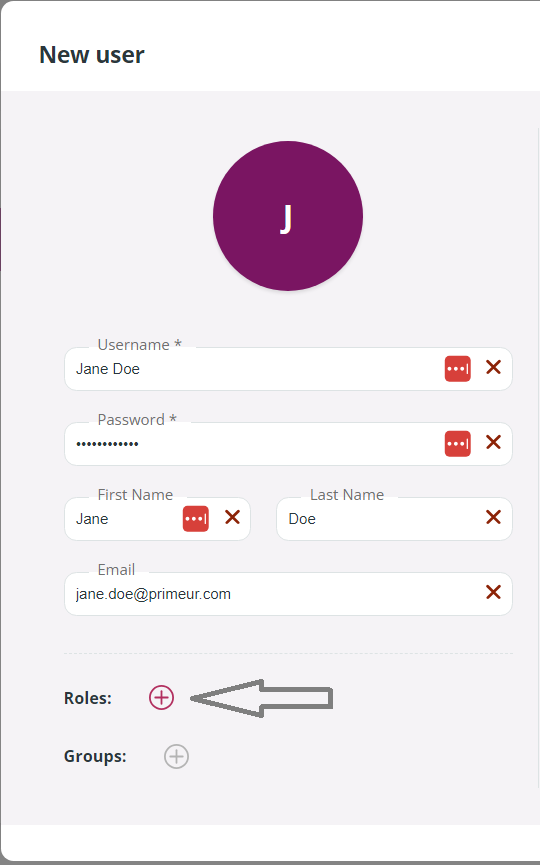
2. Click the **NEW USER** button or edit an existing user.
3. Fill in the necessary fields.
4. Click the **+** button next to **Roles:**
In the **Add Roles** window, identify the role you want to assign to the user and click the + button on the right.
5. Click the **Add** button to confirm. All role permissions are automatically assigned to the user and, if necessary, more permissions can be added. If you add permissions, the user will have all permissions of the role plus all additional permissions assigned manually. Note that if the user belongs to a Group, the group permissions will be added as well. For clarity, the origin of each permission (role or group) is shown in brackets.
6. Click the **Save** button to confirm.
To edit a role, click the role card and the **Role configuration** window will appear. Assigned permissions are listed. If you need to add permissions, click the icon and select the new permissions. Then, click **Save** to confirm.
To delete a role, hover over the card and click the **bin icon** in the top right corner. Note that **the Administrator, Operator, and Modeler roles cannot be deleted or modified**.
To filter roles, use the **Search Roles** field at the top of the page.
---
# Agent Instructions: Querying This Documentation
If you need additional information that is not directly available in this page, you can query the documentation dynamically by asking a question.
Perform an HTTP GET request on the current page URL with the `ask` query parameter:
```
GET https://docs.primeur.com/data-watcher-1.21/setup/data-watcher-roles.md?ask=
```
The question should be specific, self-contained, and written in natural language.
The response will contain a direct answer to the question and relevant excerpts and sources from the documentation.
Use this mechanism when the answer is not explicitly present in the current page, you need clarification or additional context, or you want to retrieve related documentation sections.
 icon. The icon becomes a closed eye
  and to list all permissions again, you must click on it.
5. Click the **Save** button to confirm.
The created role is available when creating or editing users, allowing the administrator to assign role permissions to users without having to select them individually.
To **assign a role to a user**, follow these steps:
1. As Administrator, go to **Setup** and click the **Users** chip.
2. Click the **NEW USER** button or edit an existing user.
3. Fill in the necessary fields.
4. Click the **+** button next to **Roles:**
and to list all permissions again, you must click on it.
5. Click the **Save** button to confirm.
The created role is available when creating or editing users, allowing the administrator to assign role permissions to users without having to select them individually.
To **assign a role to a user**, follow these steps:
1. As Administrator, go to **Setup** and click the **Users** chip.
2. Click the **NEW USER** button or edit an existing user.
3. Fill in the necessary fields.
4. Click the **+** button next to **Roles:**