# Cut-off Board
The **Cut-off Board** provides an overview of all cut-off statuses for each modeled dataflow.
The **Cut-off Board** menu is available on the bar on the left. When Data Watcher is in a bundle with Data Mover, the Cut-Off Board is under the **Monitoring** menu.
## The toolbar
Cut-offs can be shown with a daily, weekly or monthly granularity that can be set on the **Toolbar**. To refresh the list without reloading the entire page, the refresh icon is available on the right of the toolbar.
The toolbar at the top of the list of results is organized with a set of options that let you:
* see the number of results **displayed** in the result list out of the total number of results **existing**
* jump to the **First**, **Previous**, **Next,** and **Last** page
* set the **number of items** that you want to display on each page choosing among 25 (default), 50, 100 or 150.
* **refresh** the page
## Searching and filtering Cut-offs
**Search by Timeframe**
To view all cut-offs within the selected timeframe, use the **Search** box at the top of the screen.
**Filter by Flow Attributes**
Enter any flow attribute in the **Search** field and click **Search**.
Examples of attributes include:
* Flow name
* Filename
* Date
**Filter by Status**
Click one of the following status options:
* **Pending** – Cut-offs scheduled for future completion
* **Warning** – Cut-offs still pending and close to the deadline
* **On Schedule** – Cut-offs completed successfully and on time
* **Error** – Cut-offs incomplete or completed after the scheduled time
**Access to the status filters** is available even when the Filters panel is collapsed.
The **compact vertical toolbar** allows you to quickly adjust key filters without reopening the full Filters panel. The buttons in the collapsed view always reflect the **active filters**, ensuring full consistency between the collapsed and expanded layouts. Any change made in the collapsed view is applied immediately and remains when the Filters panel is expanded again.
**Filter by Model**
In the **Filters** panel, select the desired **Dataflow Model**, then click **Done** and **Apply**.
Filters are persisted across sections. When you apply a filter on the Cut-off Board and then navigate to another section of Data Watcher (or Data One), the selected filter is **stored and remains active**. This means that when you return to the Cut-off Board, the previously applied filter is still in place and **is not reset automatically**.
## Cut-off status notifications
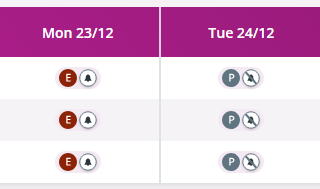
The status of cut-off notifications is visible in the cut-off row, with a bell icon showing if the cut-off notification is ON or OFF.
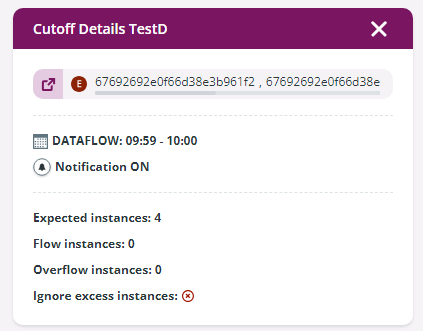
Clicking the bell icon, a window will appear listing information about the Cut-off, on the bottom right corner:
Click on the icon to apply the flow id as filter and be redirected to the **Inquiry** list.
Clicking on the flow id, you will copy it to the clipboard.
## Cut-off evaluation delay
When the [cut-off evaluation delay](/data-watcher-1.21/model/cut-offs/create-a-cut-off.md#time-settings-panel) is set in planned cut-offs, an hourglass icon will appear on the status icon on the **Cut-off board** to warn the user that the specific dataflow has an evaluation delay set. To give an example, the Error status will be represented in this way:
Clicking the bell icon, a window will appear listing information about the Cut-off, on the bottom right corner:
Click on the icon to apply the flow id as filter and be redirected to the **Inquiry** list.
Clicking on the flow id, you will copy it to the clipboard.
---
# Agent Instructions: Querying This Documentation
If you need additional information that is not directly available in this page, you can query the documentation dynamically by asking a question.
Perform an HTTP GET request on the current page URL with the `ask` query parameter:
```
GET https://docs.primeur.com/data-watcher-1.21/monitor/cut-off-board.md?ask=
```
The question should be specific, self-contained, and written in natural language.
The response will contain a direct answer to the question and relevant excerpts and sources from the documentation.
Use this mechanism when the answer is not explicitly present in the current page, you need clarification or additional context, or you want to retrieve related documentation sections.