# Matching Criteria
**Matching criteria** are groups of rules that are applied to monitored flows to transform them into dataflows.
Multiple matching criteria can be defined and each group of criteria can be applied to a specific node. It is up to you to decide whether each group must be searched in AND (all rules must be matched to recognize the model) or in OR (only one rule is enough to recognize the model).
The set of rules inside each group of matching criteria is always searched in AND.
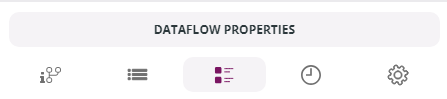
Matching criteria are defined by going to **Design** → **Dataflow Models** → **New** or **Edit** → **Dataflow Properties** panel → **Matching Criteria** icon.
When Data Watcher is in a bundle with Data Mover, Matching criteria are defined by going to **Design** → **Dataflow Models** → **New** or **Edit** → **Dataflow Properties** panel → **Matching Criteria** icon.
{% hint style="warning" %}
Remember that at least one Matching Criteria is required to create a model!
{% endhint %}
To create a new Matching Criteria, a node must exist on the **Dataflow Modeler**.
Go to **Dataflow Properties** and click the **Matching Criteria** icon. Then:
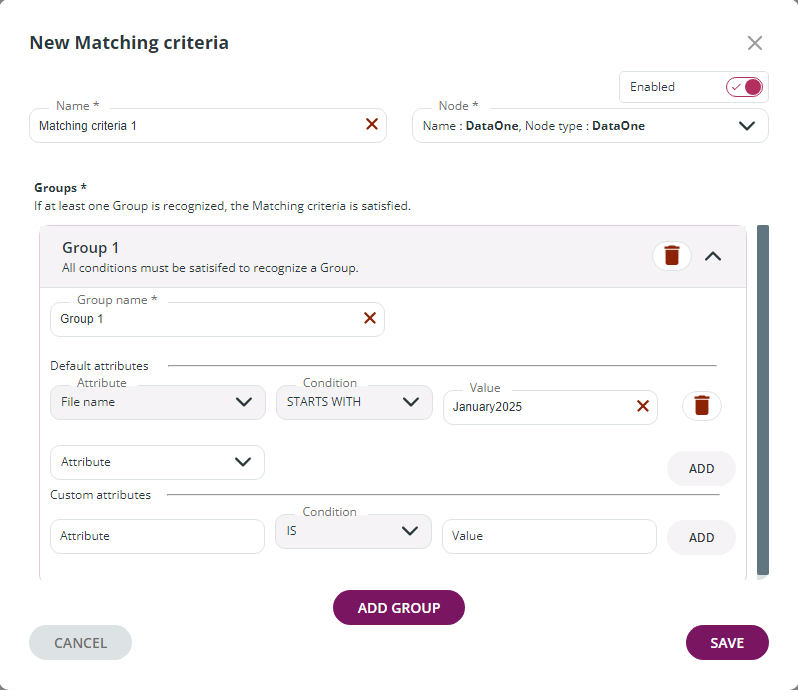
1. Click on the **NEW** button and the **New matching criteria** window will open.
2. Enter a **Name** for your matching criteria and select whether the criteria will be **enabled** (default) or **disabled** upon creation.
3. Select the **Node** your criteria will be associated with and the **Groups** section will appear.
5. Define a **Group Name** or leave the default name.
6. You can add **Default attributes** to your group by selecting the **Attribute** (i.e. the type of attribute that will be searched for in the monitored flows), the **Condition**, and the **Value**.
7. Click **ADD** to save the attribute.
8. You can also add **Custom attributes**. Custom attributes may be useful when flows are managed by external agents and are not subject to standard attribute rules.
{% hint style="info" %}
The Attributes defined for each group are always related to an AND relationship. This means that they will ALL be applied to the monitored flows.
{% endhint %}
8. Click on the **ADD GROUP** button to add as many groups as you need.
{% hint style="info" %}
The Attributes Groups are always related to an OR relationship. This means that only the attributes of ONE group are enough for the rule to be applied.
{% endhint %}
9. When all the options are set, click on the **SAVE** button.
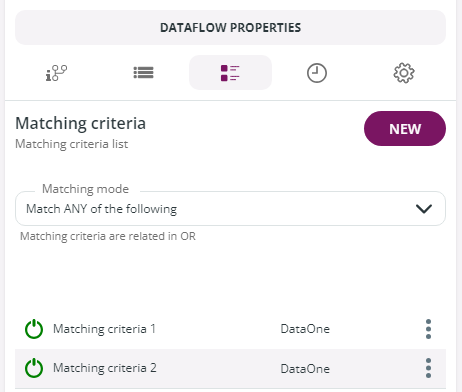
Once you have created a new Matching Criteria, this will appear in the **Matching criteria list** section of the **Matching Criteria** panel. By clicking on the 3 dots icon at the end of each result, you can **Disable**, **Edit** or **Delete** the Matching Criteria.\
The results in the list are related following the rules set in the **Matching mode** drop-down list:
* **Match ANY of the following**: only one rule is enough to recognize the model. Matching criteria are related in OR. This is the default option.
* **Match ALL of the following**: all rules must be matched to recognize the model. Matching criteria are related in AND.
---
# Agent Instructions: Querying This Documentation
If you need additional information that is not directly available in this page, you can query the documentation dynamically by asking a question.
Perform an HTTP GET request on the current page URL with the `ask` query parameter:
```
GET https://docs.primeur.com/data-watcher-1.21/model/matching-criteria.md?ask=
```
The question should be specific, self-contained, and written in natural language.
The response will contain a direct answer to the question and relevant excerpts and sources from the documentation.
Use this mechanism when the answer is not explicitly present in the current page, you need clarification or additional context, or you want to retrieve related documentation sections.