# Workflows
### Workflow overview
Workflows are one of the core building blocks in Apache Hop. Where pipelines do the heavy data lifting, workflows take care of the orchestration work: prepare the environment, fetch remote files, perform error handling and executing child workflows and pipelines.
Workflows consist of a series of [actions](https://docs.primeur.com/data-shaper-1.20/knowing-the-data-shaper-designer/workflows/actions), connected by hops. Just like a [transform](https://docs.primeur.com/data-shaper-1.20/knowing-the-data-shaper-designer/pipelines/transforms) in a [pipeline](https://docs.primeur.com/data-shaper-1.20/index/hop-gui-pipelines), each action is a small piece of functionality. The combination of a number of actions allows Hop developers to build powerful data orchestration solutions.
Even though there is some visual resemblance, workflows and pipelines operate very differently.
* Workflows perform orchestration tasks. Actions in a workflow usually do not operate on the data directly (even though you *can* change data e.g. through [SQL](https://docs.primeur.com/data-shaper-1.20/knowing-the-data-shaper-designer/workflows/actions/sql)).
* Workflows have one (and only one) mandatory starting point (a [Start](https://docs.primeur.com/data-shaper-1.20/knowing-the-data-shaper-designer/workflows/actions/start) action), but can have multiple end actions.
* Workflows can
* Workflows work sequentially by default. Each action in a workflow has a position in the workflow sequence, and needs to wait before the previous actions have completed before it starts.
* Workflow actions do not pass data over hops. Each workflow action has a `success` or `failure` exit status. This exit status is used to choose the routing through the workflow.
* Hops between actions in a workflow have a status: depending on the exit status of the previous action, a workflow hop can follow the success (green), failure (orange) or unconditional (black) hop. An unconditional hop ignores the exit status of the previous action and is followed whether the previous action failed or succeeded.
### Example workflow walk-through
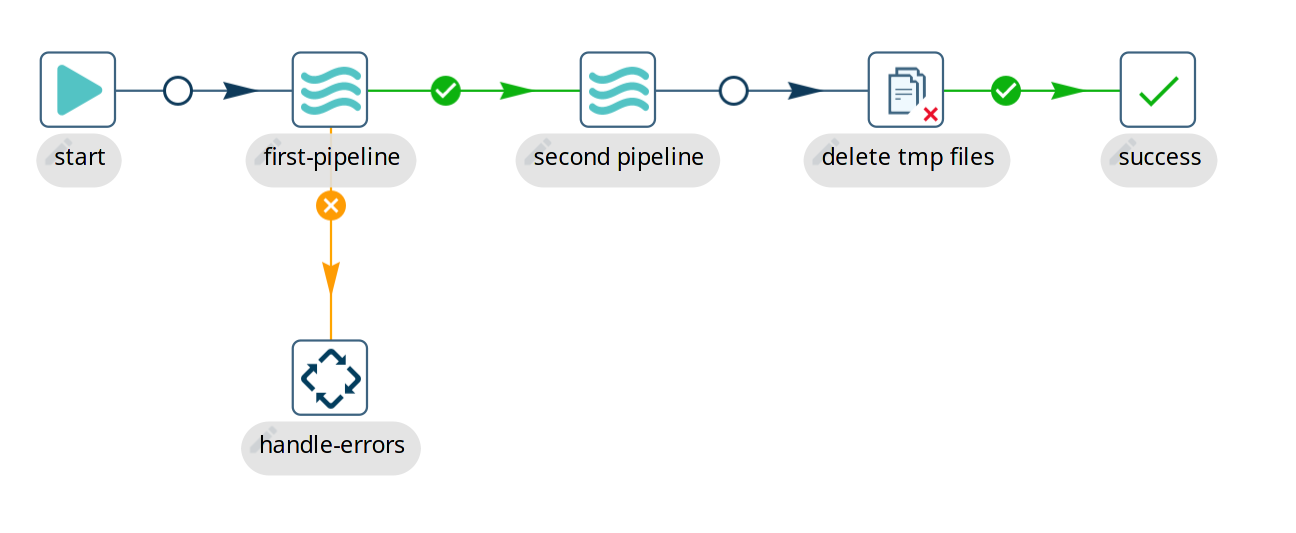
Like all workflows, the example workflow shown below starts with the `start` action.
The Start action is just a placeholder that can’t really fail, so the hop out of a start action is unconditional.
The workflow then continues with a [pipeline](https://docs.primeur.com/data-shaper-1.20/knowing-the-data-shaper-designer/workflows/actions/pipeline) action, "first-pipeline". As the name implies, this action executes a pipeline.
If "first-pipeline" runs successfully, the workflow continues to "second-pipeline". If "first-pipeline" fails, the failure hop to "handle-errors" is followed.
In this hypothetical example, we don’t care about the result of "Second pipeline", and want to continue to "delete-tmp-files", where any temporary files are removed.
If the temporary files are removed successfully, we move on to the "success" action. Similar to the Start action, success is a visual indicator of successful completion of this part of the workflow. It’s not mandatory and doesn’t add any functionality, but it often is a good visual indicator of an end point of your workflow’s main stream.
### Next steps
The following pages take you deeper into the process of building and running workflows:
* [Create a Workflow](https://docs.primeur.com/data-shaper-1.20/knowing-the-data-shaper-designer/workflows/create-workflow)
* [Run and Debug a Workflow](https://docs.primeur.com/data-shaper-1.20/knowing-the-data-shaper-designer/workflows/run-debug-workflow)
* [Workflow Run Configurations](https://docs.primeur.com/data-shaper-1.20/knowing-the-data-shaper-designer/workflows/workflow-run-configurations)
---
# Agent Instructions: Querying This Documentation
If you need additional information that is not directly available in this page, you can query the documentation dynamically by asking a question.
Perform an HTTP GET request on the current page URL with the `ask` query parameter:
```
GET https://docs.primeur.com/data-shaper-1.20/knowing-the-data-shaper-designer/workflows.md?ask=
```
The question should be specific, self-contained, and written in natural language.
The response will contain a direct answer to the question and relevant excerpts and sources from the documentation.
Use this mechanism when the answer is not explicitly present in the current page, you need clarification or additional context, or you want to retrieve related documentation sections.