# Best practices
### Introduction
Apache Hop gives you a large amount of freedom when deciding how to do the things you want to do. This freedom means you can be creative and productive in arriving at the desired outcome. So please consider the advice given on this page as tips or free advice to be taken or rejected for a particular situation. Only you can decide what the advice is worth.
### Naming
#### Naming conventions
As your project grows, the importance of keeping things organized grows. A clearly organized project makes it easier to find the workflows, pipelines and other project artefacts, and makes your project easier to maintain overall.
Your naming convention should not only cover all aspects of your projects. For Apache Hop, that means conventions for your workflows, pipelines, transforms, actions and metadata items. There’s more to your project than just Apache Hop, and other areas of your project are no exception. Input and output files, database tables etc will be a lot easier to manage if named clearly, cleanly and consistently.
For larger projects, a formal naming conventions document helps to centrally manage the naming conventions, and helps to avoid confusion when different team members use their own naming conventions interchangeably.
A naming convention should be maintained, updated, enforced and verified periodically. Automated naming convention checks (e.g. through scripts in commit hooks) could be considered to automate the validation of your naming conventions.
#### Transform and action names
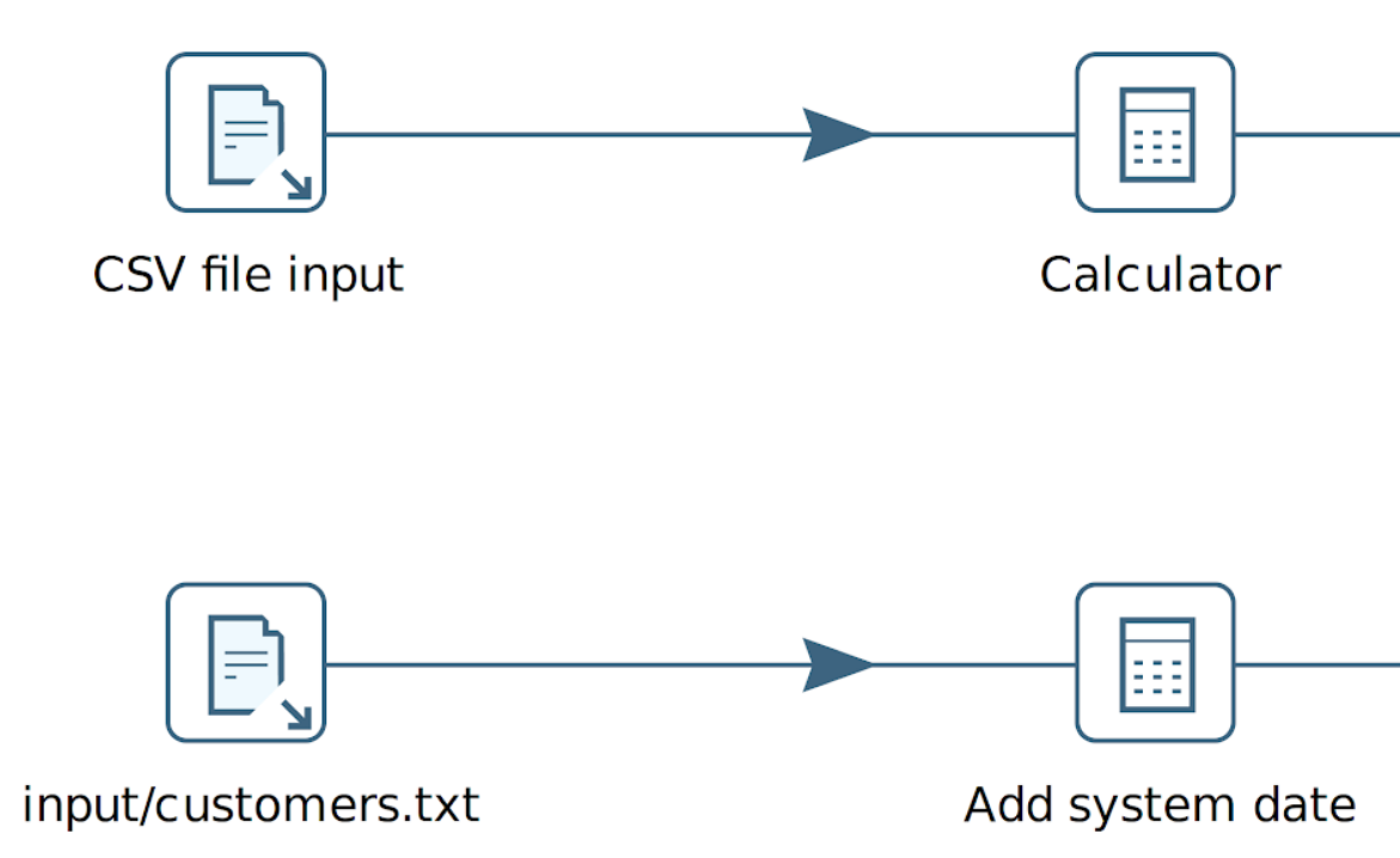
Clearly named transforms and actions make your pipelines and workflows a lot easier to understand.
The default action and transform names use the action or transform name. This makes it easy to understand what the transform does, but tell you nothing about the purpose it has in your workflow or pipeline.
`Filter rows` (or god forbid, `Filter rows 2 2` or similar names you get after copy/pasting transforms) doesn’t tell you anything. A short but concise transform name like `start_date < today` tells you exactly what is going on in a filter transform.
For example, for input and output files, you could use the filename you’re reading from or writing to.
{% hint style="info" %}
You can use (copy/paste) any unicode character in the name of a transform or action and even newlines are allowed.
{% endhint %}
#### Metadata
Metadata item names like relational database connections should immediately tell you what data they contain or what their purpose is.
Metadata item names shouldn’t contain technical or environment details.
For example, if your CRM system runs in a Postgresql database, `CRM` is fine as a name. Your connection is configured for an Oracle database, so that doesn’t need to be repeated in the name. Environment information should be configured in your project lifecycle environments, so there’s no need to include `dev`, `test` or `prod` in your connection names.
#### Project folders and subfolders
Organizing your project in clearly named folders and subfolders makes everything easier to find, to organize and to maintain. Avoid keeping tens or hundreds of workflow files in a single folder.
### Size matters
Keep the number of actions in your workflows and transforms in your pipelines within reason.
* Larger pipelines or workflows become harder to debug and develop against.
* For every transform you add to a pipeline you start at least one new thread at runtime. You could be slowing down significantly simply by having hundreds of threads for hundreds of transforms.
If you find that you need to split up a pipeline you can write intermediate data to a temporary file using the [Serialize to file](https://docs.primeur.com/data-shaper-1.20/knowing-the-data-shaper-designer/pipelines/transforms/serialize-to-file) transform. The next pipeline in a workflow can then pick up the data again with the [De-serialize from file](https://docs.primeur.com/data-shaper-1.20/knowing-the-data-shaper-designer/pipelines/transforms/serialize-de-from-file) transform. While obviously you can also use a database or use another file type to do the same, these transforms will perform the fastest.
### Variables
Parameterize everything! [Variables](https://docs.primeur.com/data-shaper-1.20/knowing-the-data-shaper-designer/variables) provide an easy way to avoid hard-coding all sorts of things in your system, environment or project.
* Put environment specific settings in one or more [environment](https://docs.primeur.com/data-shaper-1.20/knowing-the-data-shaper-designer/index-1) configuration files. This allows you to deploy your project to another environment (dev/uat/prod) without changing your project, you’ll only need to configure another set of configuration files.
* When referencing file locations, prefer `${PROJECT_HOME}` over expressions like `${Internal.Entry.Current.Directory}` or `${Internal.Pipeline.Filename.Directory}`
* Configure transform copies with variables to allow for easy transition between differently sized environments.
* use the [Environment Variables](https://docs.primeur.com/data-shaper-1.20/variables#environment-variables) to keep your projects and environments, audit information etc outside of your Apache Hop installation.
### Logging
Take some time to capture the logging of your workflows and pipelines, so you can easily find a trace of anything you have run.
Things tend to go wrong when you least expect it and at that point you like being able to see what happened.
See [Logging Basics](https://docs.primeur.com/data-shaper-1.20/knowing-the-data-shaper-designer/logging-basics), [Logging Reflection](https://docs.primeur.com/data-shaper-1.20/knowing-the-data-shaper-designer/logging-basics/logging-reflection) or consider logging to a [Neo4j](https://docs.primeur.com/data-shaper-1.20/knowing-the-data-shaper-designer/technology/index-5) graph database. This last one allows you to browse the logging results in the Neo4j perspective.
Other options include the [Pipeline Log](https://docs.primeur.com/data-shaper-1.20/knowing-the-data-shaper-designer/index-2/pipeline-log), [Pipeline Probe](https://docs.primeur.com/data-shaper-1.20/knowing-the-data-shaper-designer/index-2/pipeline-probe), [Workflow log](https://docs.primeur.com/data-shaper-1.20/knowing-the-data-shaper-designer/index-2/workflow-log) and [Execution Information Location](https://docs.primeur.com/data-shaper-1.20/knowing-the-data-shaper-designer/index-2/execution-information-location). Take a look at the available options and choose a logging strategy that works for your project and team.
### Reusable code
Organize your project so that you can reuse pipelines or workflows that require the same operations in multiple locations.
For example, this could be organized as utility folders, by using parameters or variables to add flexibility to your pipeline or workflow behavior.
#### Simple Mapping
If you have recurring logic in various pipelines, consider using the [Simple Mapping](https://docs.primeur.com/data-shaper-1.20/knowing-the-data-shaper-designer/pipelines/transforms/simple-mapping) to avoid repeating the same logic over and over in your pipelines.
The Simple Mapping is a pipeline reading from a [Mapping Input](https://docs.primeur.com/data-shaper-1.20/knowing-the-data-shaper-designer/pipelines/transforms/mapping-input) and writing to a [Mapping Output](https://docs.primeur.com/data-shaper-1.20/knowing-the-data-shaper-designer/pipelines/transforms/mapping-output) transform.
You can re-use the work in other pipelines using the [Simple Mapping](https://docs.primeur.com/data-shaper-1.20/knowing-the-data-shaper-designer/pipelines/transforms/simple-mapping) transform.
#### Metadata Injection
If you you need to create 'almost' the same pipeline a lot of times, consider using [Metadata Injection](https://docs.primeur.com/data-shaper-1.20/knowing-the-data-shaper-designer/pipelines/metadata-injection) to create re-usable template pipelines.
* Avoid manual population of dialogs
* Whenever you need dynamic ETL
* Supports data streaming
As example use cases is Loading data from 50 different file formats into a database with one pipeline template. This helps you to automatically normalize and load property sets.
### Performance basics
Here are a few things to consider when looking at performance in a pipeline:
* Pipelines are networks: the speed of the network is limited by the slowest transform in it.
* Slow transforms are indicated when running in Hop GUI. You’ll see a dotted line around the slow transforms.
* Adding more copies and increasing parallelism is not always beneficial, but it can be. Definitely don’t overdo it. Running all of the transforms in your pipeline with multiple copies definitely will **not** help. Test, measure and iterate to improve performance.
* Optimizing performance requires measuring: take note of execution times and see if you should increase or decrease parallelism to help performance.
### Loops
The easiest way to loop over a set of values, rows, files, … is to use an Executor transform.
* [Pipeline Executor](https://docs.primeur.com/data-shaper-1.20/knowing-the-data-shaper-designer/pipelines/transforms/pipeline-executor) : run a pipeline for each input row
* [Workflow Executor](https://docs.primeur.com/data-shaper-1.20/knowing-the-data-shaper-designer/pipelines/transforms/workflow-executor) : run a workflow for each input row
* [Repeat](https://docs.primeur.com/data-shaper-1.20/knowing-the-data-shaper-designer/workflows/actions/repeat): run a workflow or pipeline from a workflow action until a variable (value) is set.
* [End Repeat](https://docs.primeur.com/data-shaper-1.20/knowing-the-data-shaper-designer/workflows/actions/repeat-end): break out of a loop that was started by a Repeat action.
Each of these options allows you to map field values to parameters for the child pipeline or workflow, making loops a breeze.
{% hint style="info" %}
Tip: Avoid the "old" way of looping in workflows through the [Copy rows to result](https://docs.primeur.com/data-shaper-1.20/knowing-the-data-shaper-designer/pipelines/transforms/copyrowstoresult) transform. This mostly still exists for historical reasons. It makes it hard to see what is going on inside your loop, and this way of looping won’t be around in Apache Hop forever.
{% endhint %}
The [Looping how-to guide](https://docs.primeur.com/data-shaper-1.20/knowing-the-data-shaper-designer/index-5/loops-in-apache-hop) provides more detailed information on the topic.
### Governance
The items below will make your Apache Hop project easier to manage, to monitor and to maintain.
* Version control your project folder.
* Reference cases (e.g. JIRA or GitHub issue tickets) in commits
* Make sure to have a backup and restore strategy, and test it.
* Run continuous integration
* Set up lifecycle environments (development, test, acceptance, production)
* Test your pipelines with [unit tests](https://docs.primeur.com/data-shaper-1.20/knowing-the-data-shaper-designer/pipelines/pipeline-unit-testing). Run all your unit tests regularly, validate the results & take action if needed
---
# Agent Instructions: Querying This Documentation
If you need additional information that is not directly available in this page, you can query the documentation dynamically by asking a question.
Perform an HTTP GET request on the current page URL with the `ask` query parameter:
```
GET https://docs.primeur.com/data-shaper-1.20/knowing-the-data-shaper-designer/index-3.md?ask=
```
The question should be specific, self-contained, and written in natural language.
The response will contain a direct answer to the question and relevant excerpts and sources from the documentation.
Use this mechanism when the answer is not explicitly present in the current page, you need clarification or additional context, or you want to retrieve related documentation sections.