# Workflow template working area
In the **Working Area**, you can operate on the workflow template, moving, connecting or eliminating service tasks.
You can quickly **load a workflow template** by clicking the  button just below the toolbar. The list of all existing workflow templates will appear and you can select a template to open it.
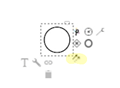
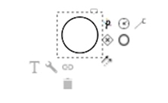
To connect 2 service tasks, select the start event service task. Multiple icons will appear around the service task.
Select the 2 arrows appearing in the bottom-right corner.
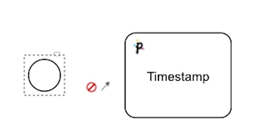
Drag the mouse cursor towards the service task you want to connect. As soon as you start moving the mouse, the icons around the starting service task will disappear and will be replaced by a no-access sign plus an arrow.
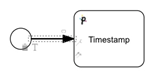
When reaching the service task, the no-access sign will become a check sign. Drop the mouse cursor and the 2 service tasks will be connected by a black arrow.
---
# Agent Instructions: Querying This Documentation
If you need additional information that is not directly available in this page, you can query the documentation dynamically by asking a question.
Perform an HTTP GET request on the current page URL with the `ask` query parameter:
```
GET https://docs.primeur.com/data-mover-1.21/workflow-templates/user-designed-workflow-templates/editing-a-user-designed-workflow-template/workflow-template-working-area.md?ask=
```
The question should be specific, self-contained, and written in natural language.
The response will contain a direct answer to the question and relevant excerpts and sources from the documentation.
Use this mechanism when the answer is not explicitly present in the current page, you need clarification or additional context, or you want to retrieve related documentation sections.
 appearing in the bottom-right corner.