# Trust Certificates
To send emails correctly, two Certificates must be imported in the **Trust Store** section in Data Mover from the local disk.
To trust the certificate, go to **Setup** → **Trust Store** → **Certificates** tab and follow these steps:
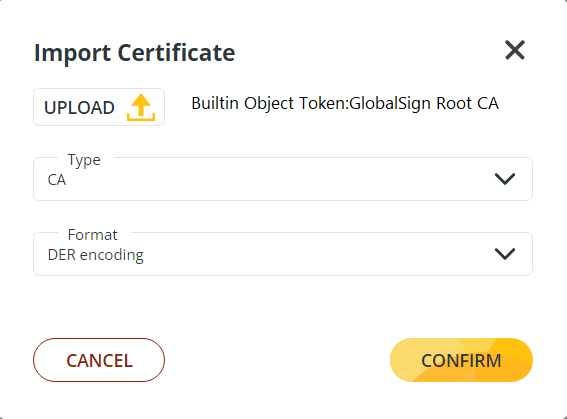
1. Click the **IMPORT** button.
2. In the **Import from File** window, click the **CHOOSE FILE** button.
3. Browse your local disk to identify the **Builtin Object Token:GlobalSign Root CA** certificate.
4. In the **TYPE** drop-down list select **CA**.
5. In the **FORMAT** drop-down list select **DER encoding**.
6. Click the **CONFIRM** button.
Repeat the same steps browsing your local disk and import the **DigiCert Cloud Services CA** certificate.
The two certificates will be imported and listed in the Trust Store section of Data Mover.
---
# Agent Instructions: Querying This Documentation
If you need additional information that is not directly available in this page, you can query the documentation dynamically by asking a question.
Perform an HTTP GET request on the current page URL with the `ask` query parameter:
```
GET https://docs.primeur.com/data-mover-1.21/notification-channels/trust-certificates.md?ask=
```
The question should be specific, self-contained, and written in natural language.
The response will contain a direct answer to the question and relevant excerpts and sources from the documentation.
Use this mechanism when the answer is not explicitly present in the current page, you need clarification or additional context, or you want to retrieve related documentation sections.