# Navigate through Primeur Data Mover
Let the journey begin.\
It's time to log in. The Administrator has provided you with a **username** and a **password**. Or you are the Administrator and you know them by heart. Either way, it's time to enter them in the **Login window**.
Once logged in, the  icon at the top-right corner of the screen will give you access to these options:
* **Preferences**: are you an English-speaking user? Or an Italian-speaking user? Select the language you prefer.
* **Switch user**: do you need to switch to another user account? You can do it without quitting Data One and logging out. Just select this option and log in again with a different user.
* **Logout**: there's no need to explain this. You know what to do with it.
To seamlessly navigate through Primeur Data Mover 1.20, you should keep in mind a few practical concepts.
### The main menu
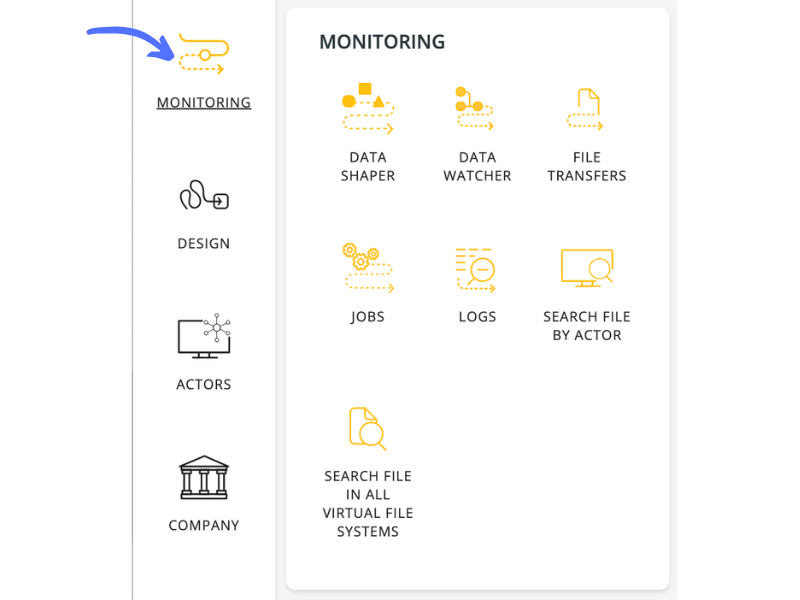
The main sections of the solution are displayed on the toolbar on the left side of the screen. The icons on the toolbar represent the **Monitoring**, **Design**, **Actors**, **Company,** and **Setup** menus. Hover over the icons to open panels featuring the different sections of PRIMEUR Data One 1.20.0.
### Clickable options and breadcrumb trail
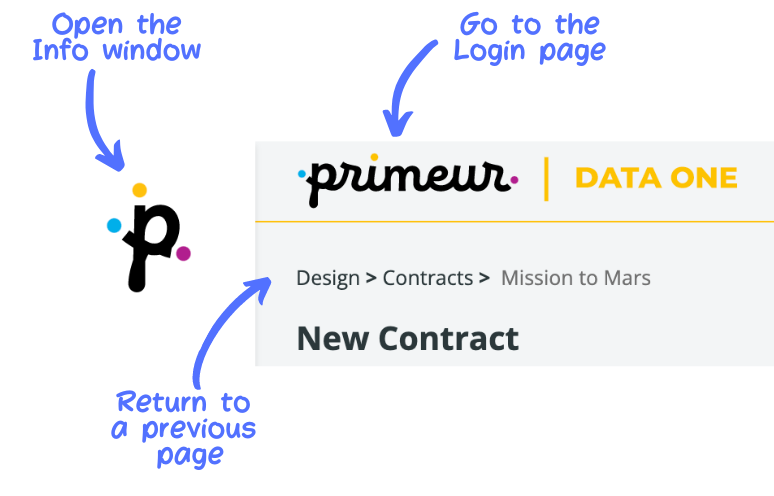
At the top of the screen, these options are clickable:
The logo on the left of the screen gives you **access to the Info section** of Data One with information useful for our lovely geek friends.
Clicking on at the top of the page **brings you back to the Data One Welcome page**.
The **breadcrumbs** at the top of the screen are very useful when you want to return to a previous page. You can also press the back button on your browser page to easily navigate through the pages. Note that when using breadcrumbs or the back button, unsaved progress will be lost.
### The toolbar
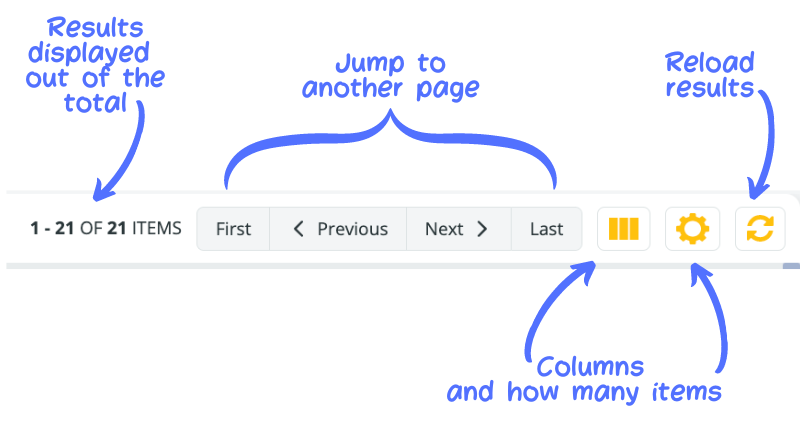
Most pages have the same layout with a toolbar at the top of a list of results. The toolbar is organized with a set of options that let you:
* see the number of results **displayed** in the result list out of the total number of results **existing**
* jump to the **First**, **Previous**, **Next,** and **Last** page
* select the **columns** that you want to display on the page
* set the **number of items** that you want to display on each page
* **refresh** the page
---
# Agent Instructions: Querying This Documentation
If you need additional information that is not directly available in this page, you can query the documentation dynamically by asking a question.
Perform an HTTP GET request on the current page URL with the `ask` query parameter:
```
GET https://docs.primeur.com/data-mover-1.21/getting-started/navigate-through-primeur-data-mover.md?ask=
```
The question should be specific, self-contained, and written in natural language.
The response will contain a direct answer to the question and relevant excerpts and sources from the documentation.
Use this mechanism when the answer is not explicitly present in the current page, you need clarification or additional context, or you want to retrieve related documentation sections.
 logo on the left of the screen gives you **access to the Info section** of Data One with information useful for our lovely geek friends.
Clicking on
logo on the left of the screen gives you **access to the Info section** of Data One with information useful for our lovely geek friends.
Clicking on