# Define a contract for the File Event Listener
To properly configure a File Event Listener and set events to be monitored, you need to have previously defined one or more on-demand FEL input contracts. Note that only on-demand FEL input contracts will be displayed in the creation procedure of a new File Event Listener.
To create a contract, go to **Design** → **Contracts** and click on the **New** button.
The New Contract wizard guides you through 3 subsequent steps:
* INFO
* ACTOR
* ACTIONS
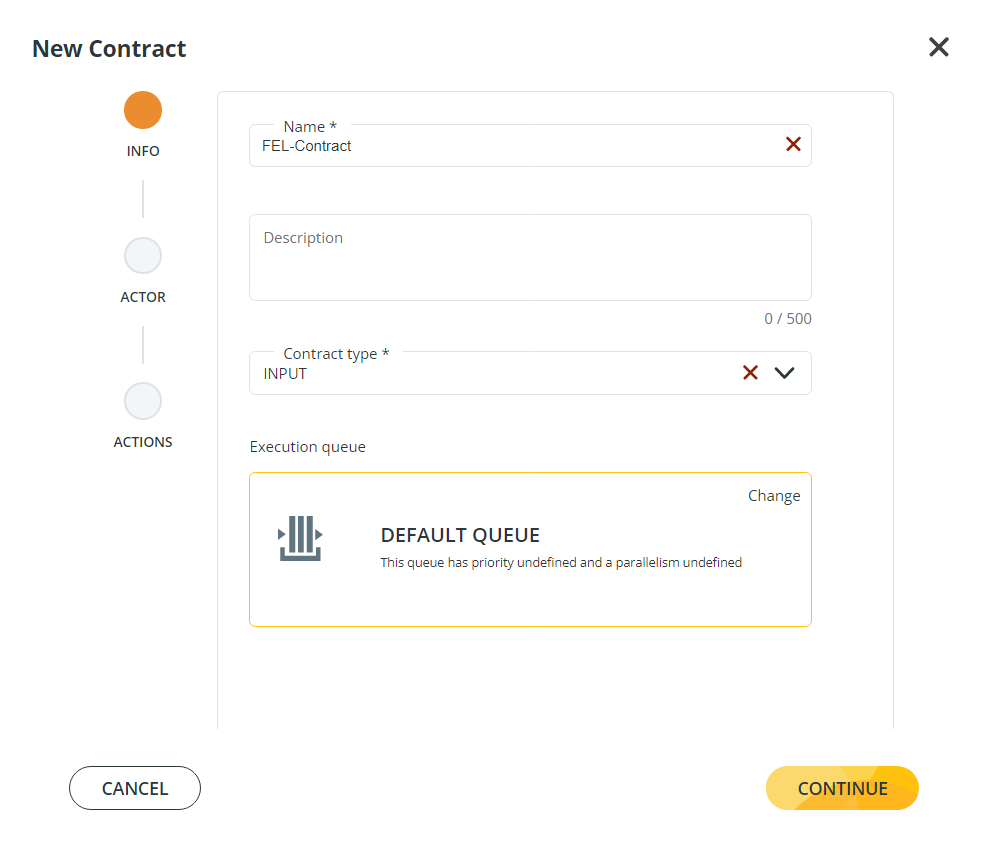
In the INFO section assign an identification **Name** to the Contract, in the example below *FEL-Contract*.
You can also enter a **Description** for your Contract. Then you must select a **Contract Type**, and select **Input** in this case.\
Click **CONTINUE** to access the next step.
In the ACTOR section, select an **Actor** to be associated with your Contract.\
**Note** that only Application actors can monitor local paths. Be also aware that if you need to monitor remote paths, Actors must be provided with an appropriate Client Connection. The supported protocols for the File Event Listeners are: SFTP and SMB3. Refer to the Actor section of this guide for a detailed description of how to configure a Client Connection.\
After you have selected an Actor, click CONTINUE.
You will access the ACTIONS section of the wizard. Here, define an **Action name** (i.e. FEL-input-1), select the OnDemand **Trigger**, and the *system\_onDemand\_FEL\_v2* **Workflow**.\
Click **SAVE** to access the next step in the configuration.
The **New Contract** page is composed of different sections, to complete the configuration of the Contract you will need to define the **Actions** section of this page.
The icon next to the Action Name signals that the Action variables have not been configured yet. To configure the Action variables, click on the icon to expand the Action row. A list of Action variables will appear, set all the mandatory parameters to proceed.\
\
For a detailed list of all the Action variables associated with the *system\_onDemand\_FEL\_v2* template please refer to the Workflows section of this guide.\
\
Once all the variables are set, this icon will appear next to the Action Name.
To enable a File Event Listener, the Contract must be ENABLED. You can create a File Event Listener and associate it with a DISABLED Contract, but then you cannot enable the File Event Listener.
Click **SAVE** and your Contract will appear in the result list.
After you have selected an Actor, click **CONTINUE**.
You can now move to the next step of the File Event Listener configuration.
---
# Agent Instructions: Querying This Documentation
If you need additional information that is not directly available in this page, you can query the documentation dynamically by asking a question.
Perform an HTTP GET request on the current page URL with the `ask` query parameter:
```
GET https://docs.primeur.com/data-mover-1.21/file-event-listener/configure-the-file-event-listener/define-a-contract-for-the-file-event-listener.md?ask=
```
The question should be specific, self-contained, and written in natural language.
The response will contain a direct answer to the question and relevant excerpts and sources from the documentation.
Use this mechanism when the answer is not explicitly present in the current page, you need clarification or additional context, or you want to retrieve related documentation sections.
 icon next to the Action Name signals that the Action variables have not been configured yet. To configure the Action variables, click on the
  icon to expand the Action row. A list of Action variables will appear, set all the mandatory parameters to proceed.\
\
For a detailed list of all the Action variables associated with the *system\_onDemand\_FEL\_v2* template please refer to the Workflows section of this guide.\
\
Once all the variables are set, this icon
icon to expand the Action row. A list of Action variables will appear, set all the mandatory parameters to proceed.\
\
For a detailed list of all the Action variables associated with the *system\_onDemand\_FEL\_v2* template please refer to the Workflows section of this guide.\
\
Once all the variables are set, this icon  will appear next to the Action Name.
To enable a File Event Listener, the Contract must be ENABLED. You can create a File Event Listener and associate it with a DISABLED Contract, but then you cannot enable the File Event Listener.
Click **SAVE** and your Contract will appear in the result list.
After you have selected an Actor, click **CONTINUE**.
You can now move to the next step of the File Event Listener configuration.
---
# Agent Instructions: Querying This Documentation
If you need additional information that is not directly available in this page, you can query the documentation dynamically by asking a question.
Perform an HTTP GET request on the current page URL with the `ask` query parameter:
```
GET https://docs.primeur.com/data-mover-1.21/file-event-listener/configure-the-file-event-listener/define-a-contract-for-the-file-event-listener.md?ask=
will appear next to the Action Name.
To enable a File Event Listener, the Contract must be ENABLED. You can create a File Event Listener and associate it with a DISABLED Contract, but then you cannot enable the File Event Listener.
Click **SAVE** and your Contract will appear in the result list.
After you have selected an Actor, click **CONTINUE**.
You can now move to the next step of the File Event Listener configuration.
---
# Agent Instructions: Querying This Documentation
If you need additional information that is not directly available in this page, you can query the documentation dynamically by asking a question.
Perform an HTTP GET request on the current page URL with the `ask` query parameter:
```
GET https://docs.primeur.com/data-mover-1.21/file-event-listener/configure-the-file-event-listener/define-a-contract-for-the-file-event-listener.md?ask=