# VFS tab
A VFS is a container that stores in-transit files. In this tab of the **Actors** section, you can manage the VFS associated with the actor.
Here are the options available:
* **Create a new VFS**: a new VFS can be created and associated with the actor.
* **Bind an existing VFS**: an existing VFS can be searched and associated with the actor.
* **Create a new VFS view**: a special view on one or more VFS can be created and associated with the actor.
In this section, an overview of the main options available in the **Actors** page of Data Mover is given. For all the details, refer to the [Virtual File Systems](/data-mover-1.21/virtual-file-systems/what-is-a-virtual-file-system.md) section.
The results list can be navigated with the [toolbar](/data-mover-1.21/getting-started/navigate-through-primeur-data-mover.md#the-toolbar).
## Create a new VFS
By clicking the **NEW** button, you can **create a new VFS** that will be automatically assigned to the selected actor.
The fields to be filled in the **New Virtual File System** window are described in the [Create a virtual file system](/data-mover-1.21/virtual-file-systems/create-a-virtual-file-system.md) page.
## Bind an existing VFS
By clicking the **BIND** button, you will **associate an already existing VFS with the actor**.
The **Bind** window will appear, with a search bar to search for the VFS and the list of existing VFS. Using the search bar is useful to filter results, especially when dealing with a large number of VFS.
Select the VFS you want to assign to the actor and click the **Confirm** button.
## Create a new VFS view
By clicking the **NEW VIEW** button, you can **create a special view of the VFS** so that the actor will see a specific subset of the folders belonging to the VFS – and not the full VFS. Moreover, separate VFS can be selected to create one single VFS that will aggregate all the selected folders.
Creating a VFS view means that a specific portion of one or more VFS can be selected so that the user accessing the VFS will see a subset of folders. This feature is useful for Customers having complex file systems, which can be aggregated and shown in one single view. Moreover, the view can be changed dynamically simply configuring the group to which the users belong.
To create a view of the VFS, follow these steps:
1. In the **VFS** tab, click the **NEW VIEW** button.
2. In the **Virtual File System View** window, assign a name to the view you are creating and click **NEXT**.
3. In the **Choose VFS** drop-down list, select the VFS.
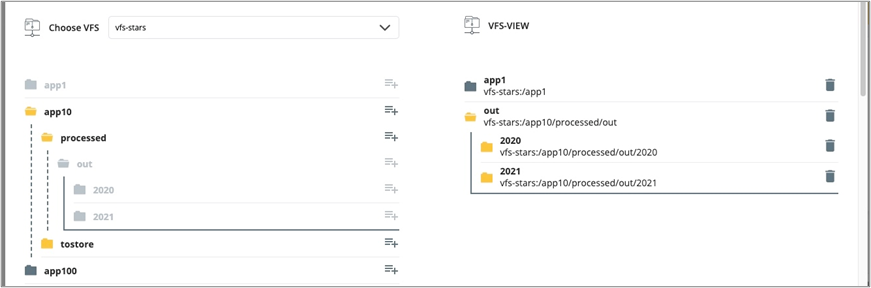
4. All the folders belonging to the selected VFS will be listed. Click the  icon to select the folder that will be assigned to the VFS view you are creating.\
Note that:\
\- Once selected, the folder will be greyed out.\
\- If you select a parent, the parent folder and all its children will be added to the view.\
\- If you select a child, only the child will be added to the view.\
\- When you select the last child, the parent folder will be greyed out.
5. The folders selected will be listed on the right of the window. To remove a folder from the view, just click the trash-bin icon on the right.
{% hint style="info" %}
If a Virtual Path of a VFS or a VFS view is used in a Connection Contract, it cannot be removed. If any subfolders of the Virtual Path are used in a Connection Contract, the Virtual Path cannot be deleted. A warning message will appear listing the Connection Contracts using the Virtual Path.
{% endhint %}
6. To add the folders of a different VFS, select the new VFS in the **VFS** drop-down list on the left and assign the new folders. As you will see, the VFS name and the path of the VFS folder are shown in the format VFS\_NAME:/VFSFolder\_path (e.g. VFS-NASA:/Missions/2020/January).
{% hint style="warning" %}
Virtual folders with the **same name cannot be added**, even if they belong to different VFSs and have different paths. A message will appear warning you that the operation cannot be done.
{% endhint %}
7. Once you have added all the folders you need, click the **Save** button to create your VFS view.
The VFS view you have created will be added to the results list.
The **VFS view** can be checked or edited by clicking the  icon. To remove a folder listed in the **VFS view**, click the trash bin icon next to the folder.
## VFS menu options
The 3‑dot icon next to each group provides the following options:
* **Edit:** opens the **Virtual File System details** (for VFS) or the **Virtual File System View** window (for VFS Views).
* **Delete:** permanently deletes the VFS.
## Filters panel
VFS and Views can be filtered using the **Filters** panel, which has 3 fields:
* **Search VFS**: enter the full VFS name or part of it, then press **Enter** on your keyboard or click **Apply**.\
The search field is **case‑insensitive**.\
You can search even by typing a **single character** (letter or number).\
**Wildcard characters are not supported**.
* **Select Type**: use this drop‑down menu to filter VFS entries by type. The available options are **VFS**
and **VIEW**.
* **Select group**: enter at least **3 characters** to search for a group.\
This field is **case‑sensitive**.\
Boolean characters are **not supported**.\
All matching groups will be displayed.
After setting your filters, click **Apply** to run the search.
To reset all filters, click **Clear all**.
---
# Agent Instructions: Querying This Documentation
If you need additional information that is not directly available in this page, you can query the documentation dynamically by asking a question.
Perform an HTTP GET request on the current page URL with the `ask` query parameter:
```
GET https://docs.primeur.com/data-mover-1.21/actors/configure-an-actor/vfs-tab.md?ask=
```
The question should be specific, self-contained, and written in natural language.
The response will contain a direct answer to the question and relevant excerpts and sources from the documentation.
Use this mechanism when the answer is not explicitly present in the current page, you need clarification or additional context, or you want to retrieve related documentation sections.
icon. To remove a folder listed in the **VFS view**, click the trash bin icon next to the folder.
## VFS menu options
The 3‑dot icon next to each group provides the following options:
* **Edit:** opens the **Virtual File System details** (for VFS) or the **Virtual File System View** window (for VFS Views).
* **Delete:** permanently deletes the VFS.
## Filters panel
VFS and Views can be filtered using the **Filters** panel, which has 3 fields:
* **Search VFS**: enter the full VFS name or part of it, then press **Enter** on your keyboard or click **Apply**.\
The search field is **case‑insensitive**.\
You can search even by typing a **single character** (letter or number).\
**Wildcard characters are not supported**.
* **Select Type**: use this drop‑down menu to filter VFS entries by type. The available options are **VFS**
and **VIEW**.
* **Select group**: enter at least **3 characters** to search for a group.\
This field is **case‑sensitive**.\
Boolean characters are **not supported**.\
All matching groups will be displayed.
After setting your filters, click **Apply** to run the search.
To reset all filters, click **Clear all**.
---
# Agent Instructions: Querying This Documentation
If you need additional information that is not directly available in this page, you can query the documentation dynamically by asking a question.
Perform an HTTP GET request on the current page URL with the `ask` query parameter:
```
GET https://docs.primeur.com/data-mover-1.21/actors/configure-an-actor/vfs-tab.md?ask=
```
The question should be specific, self-contained, and written in natural language.
The response will contain a direct answer to the question and relevant excerpts and sources from the documentation.
Use this mechanism when the answer is not explicitly present in the current page, you need clarification or additional context, or you want to retrieve related documentation sections.