# Lineage with any contract type
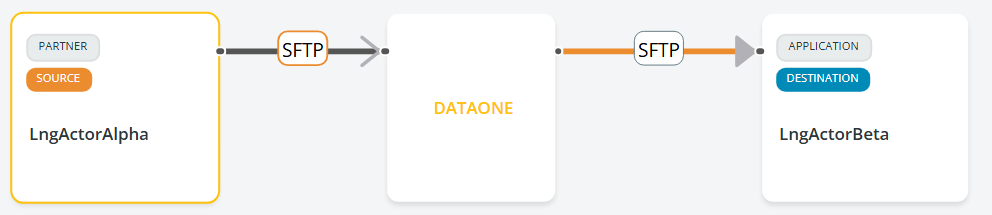
In this flow, **Data Mover is set up as a server in input and as a client in output**, as indicated by the empty arrow symbol on the left and the filled-up arrow symbol on the right.
The SFTP chip on the left (input) has an orange arrow in the output. Clicking on the SFTP output will take you to the most detailed level, where you can see the flow and its configuration.
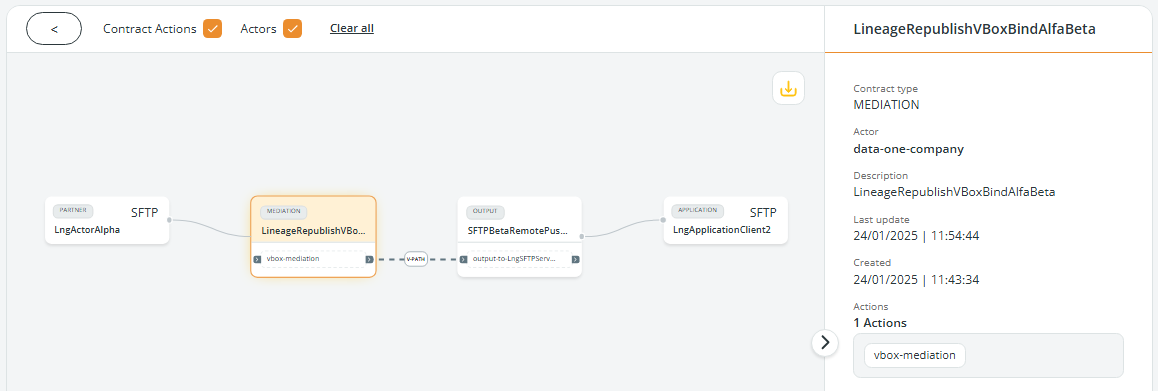
In the figure above, the Lineage option shows the complete flow, whose configuration includes:
* a **source partner** that sends the files to Data Mover with a connection contract using the SFTP protocol
* a **mediation contract** with one action and a virtual path
* an **output contract**, with one action
* an **application** that receives the files from Data Mover using the SFTP protocol
By clicking the MEDIATION **upper part of the box**, the Contract type, Actor, Description, Last update, and Creation date, together with the action, are shown.
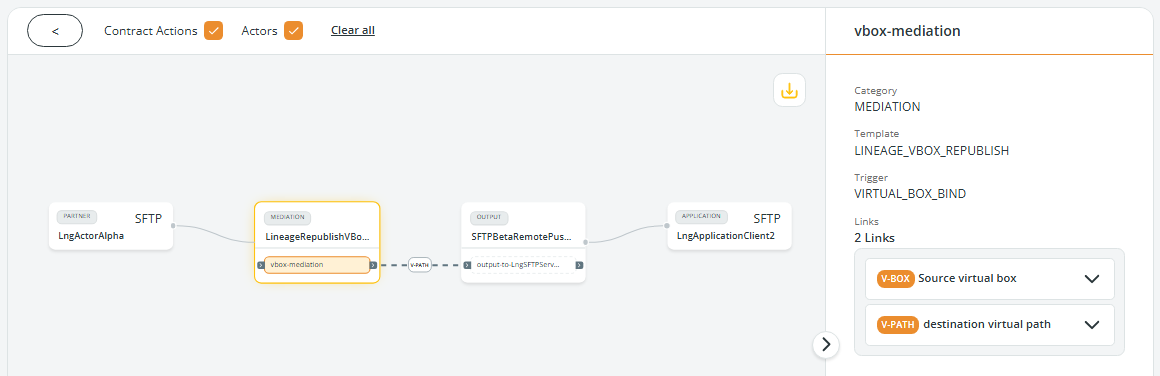
By clicking mediation-vBoxBind in the **lower part of the box**, the Category, Template, Trigger, and links of the contract connection, with all the details, are shown.
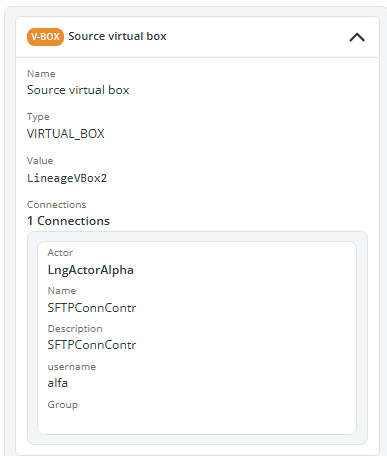
You can click on the **Source virtual box** link to expand the panel and see the details of the Virtual Box together with its connection:
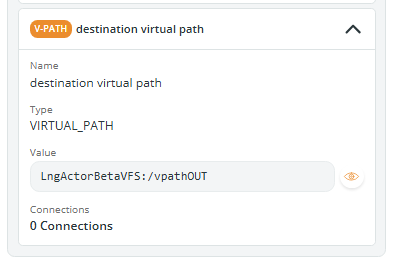
You can click on the **Destination virtual path** link to expand the panel and see the details of the virtual path:
The same logic applies to the OUTPUT box. By clicking the OUTPUT **upper part of the box**, the Contract type, Actor, Description, Last update, and Creation date, together with the action, are shown.
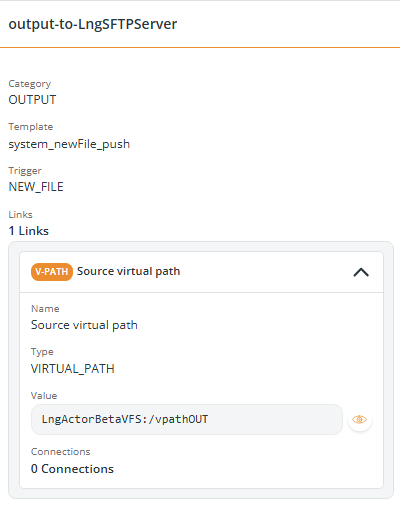
By clicking output-to-LngSFTPServer in the **lower part of the box**, the Category, Template, Trigger, and links of the output contract, with all the details, are shown.
---
# Agent Instructions: Querying This Documentation
If you need additional information that is not directly available in this page, you can query the documentation dynamically by asking a question.
Perform an HTTP GET request on the current page URL with the `ask` query parameter:
```
GET https://docs.primeur.com/data-mover-1.21/actors/actor-lineage/lineage-with-any-contract-type.md?ask=
```
The question should be specific, self-contained, and written in natural language.
The response will contain a direct answer to the question and relevant excerpts and sources from the documentation.
Use this mechanism when the answer is not explicitly present in the current page, you need clarification or additional context, or you want to retrieve related documentation sections.