# Manage virtual file systems
The list of all virtual file systems is available by going to **Setup** → **Virtual File Systems**.
Each row represents a VFS and includes the following information:
* **Name**: the unique name of the VFS.
* **Actors**: the actor associated with the VFS.
The 3-dot button opens a context menu allowing you to edit or delete the VFS.
Above the results list, the standard Data Mover [toolbar](/data-mover-1.20/getting-started/navigate-through-primeur-data-mover.md#the-toolbar) is available.
Directly above the results list, the total VFS **assigned to Applications**, total VFS **assigned to Partners** and total VFS **assigned to the Company** are given. These values provide a **high‑level overview** of how many VFS exist in each assignment category, regardless of which subset you are currently viewing.
Even if the results list updates based on your filter selection, the counters continue to show the overall totals for the entire system.
To create a new Virtual File System, click the **NEW** button and fill in the fields listed on the [Creating a Virtual file system](/data-mover-1.20/virtual-file-systems/create-a-virtual-file-system.md) page.
### Filters panel
The **Filters** panel allows you to refine the list of displayed VFS items by applying one or more filtering criteria. It contains the following elements:
* **Search VFS**: search the VFS by its name. The search is case insensitive. Wildcard characters are not supported.
* **Assigned to**: predefined options are **Application**, **Partner**, and **Company**.
* **Actor**: filter VFS items by actor name. When you start typing in the field, matching actors will appear in a scrollable list. An **X icon** is provided to clear the current selection.
After choosing the desired filters, click **APPLY** to update the results based on the selected criteria.
Click the Clear all link at the top right of the panel to reset all filters at once and restore the default view.
### Limits panel
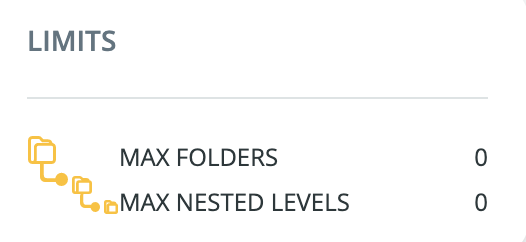
Below the **Filters** panel, the **Limits** panel shows the **maximum number of folders and nested levels** that can be created within a Virtual File System (VFS).
These settings help maintain control over the folder structure. By defining limits on the total number of folders and the depth of sub‑folders, you can prevent the VFS from becoming overly complex or difficult to manage.
**Maximum values**
* **0** means *unlimited*.\
This is the default for both the number of folders and the number of nested levels.
**Setting limits**
Click the panel to define new values. These limits are applied at a **global level**:
* If no other limits are configured, the values set here apply to every VFS created.
**Maximum number of nested levels**
This setting controls the **depth** of the folder structure.\
Examples:
* **1** → Only folders directly under the root can be created; no sub-folders allowed.
* **2** → Folders under the root can have *one* level of sub‑folders.
* And so on.
**Maximum number of folders**
This setting defines the **total number of folders**, including sub-folders, allowed within the VFS.\
Example:
* **10** → Only 10 folders (at any level) can be created.
**How limits interact**
Example scenario:
* Maximum folders = **10**
* Maximum nested levels = **0** (unlimited)
You can create:
* 10 folders all under the root, **or**
* any combination of nested folders, as long as the total does not exceed 10.
If you later change the maximum nested levels to **2**:
* You can still create up to **10** folders,
* but the structure can only be 2 levels deep (root → folder → sub‑folder).
* No sub‑folders of sub‑folders.
Remember: a value of **0** always means **no limit**.
The same options are available in the **Add New Virtual File System** window. Values set in this window apply **only to the specific VFS** being created or modified and override any global limits.
---
# Agent Instructions: Querying This Documentation
If you need additional information that is not directly available in this page, you can query the documentation dynamically by asking a question.
Perform an HTTP GET request on the current page URL with the `ask` query parameter:
```
GET https://docs.primeur.com/data-mover-1.20/virtual-file-systems/manage-virtual-file-systems.md?ask=
```
The question should be specific, self-contained, and written in natural language.
The response will contain a direct answer to the question and relevant excerpts and sources from the documentation.
Use this mechanism when the answer is not explicitly present in the current page, you need clarification or additional context, or you want to retrieve related documentation sections.